

Office Hours Overview
Pawtograder’s office hours feature allows students to request live help from course staff. Student requests go into a queue, and multiple staff members can be working concurrently through that queue, assigning themselves to help students as they become available. Students are encouraged to make public requests for help, so that other students can also benefit from the discussion.Office Hours Queues
Instructors can create multiple office hours queues to provide different types of help. For example, if a class is coordinated across multiple campuses, there may be in-person help queues per-campus, and a cross-network virtual help queue.Help Request Templates
Instructors can create help request templates, which are pre-filled help requests that students can use to request help. This is useful to help prompt students to ensure that they have completed any expected troubleshooting steps before seeking help. Templates include:- A template name (e.g., “General help request”)
- A description explaining what information students should provide
- Pre-filled placeholder text guiding students to include relevant details
Pinned Discussion Topics
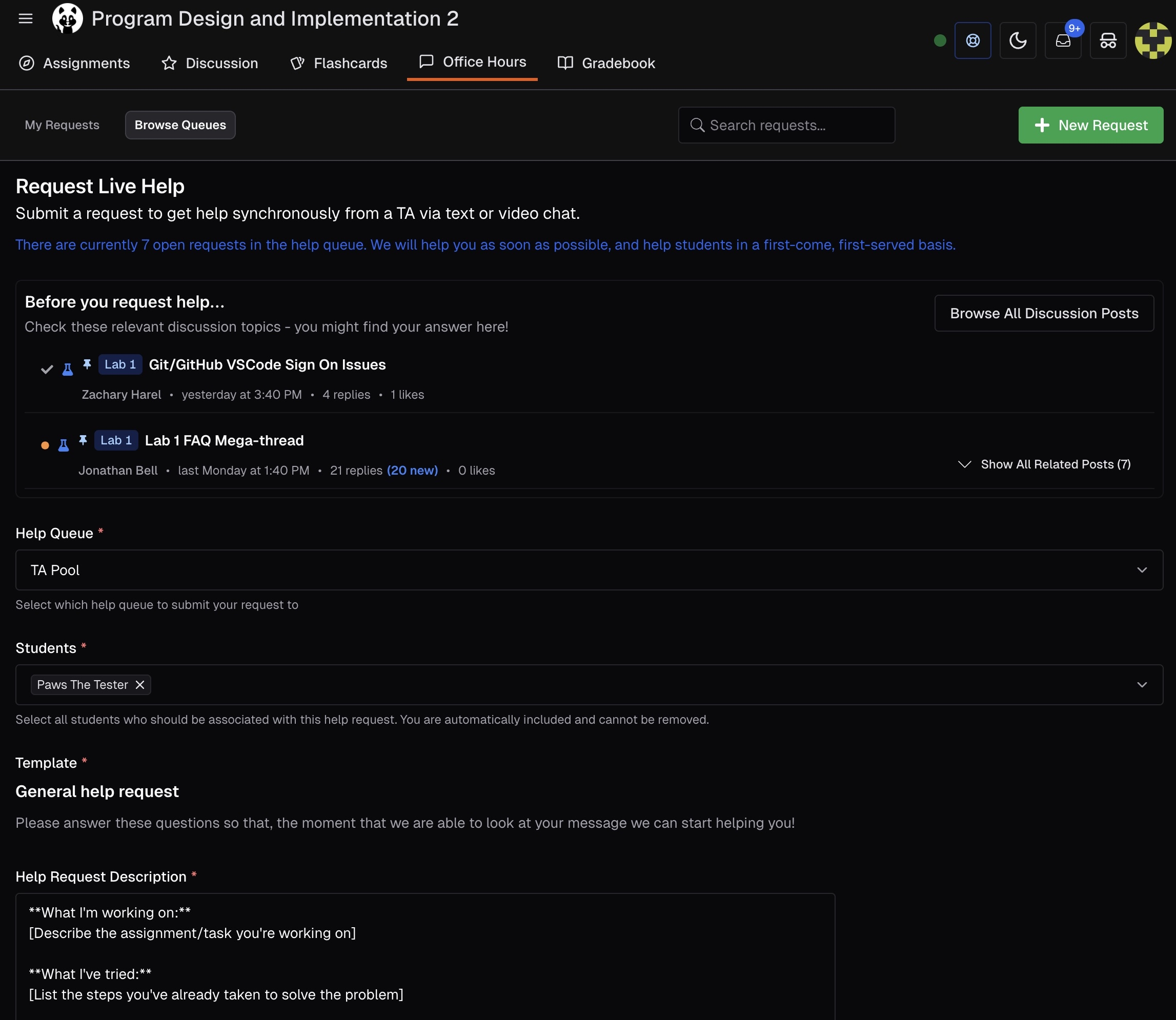
When students create a new help request and your course has pinned discussion posts, the system automatically displays a “Before you request help…” section with pinned discussion topics from the course discussion board. This feature:- Encourages students to check existing answers before joining the queue
- Surfaces instructor-highlighted posts that address common questions
- Shows related posts with an expandable “Show All Related Posts” option
- Reduces wait times by helping students find answers independently
Providing Help
When a staff member is working on the queue, they should click Start Working to indicate that they are available to help. This is a helpful indicator for students, and also allows instructors to see that staff are logged on and ready to help. Select a help request from the queue, and click Take Assignment to indicate that you are actively working on it.Text and Video Chat
Staff can communicate with students through:- Text Chat: Built-in messaging for quick questions and code sharing
- Video Chat: Click Start Video Chat to open a video call with screen-sharing capabilities
Active Help Request Widget
When a student has an active help request, it follows them around the site. They’ll see:- Their current queue position or status
- Notifications when staff assigns to help them
- Video call invitations with a prominent “Join Video Call” button
Resolving Requests
A help request can be marked as “Resolved” by either a staff member or a student. Students can resolve their own requests from the chat interface or floating banner, and can select a resolution status:- Resolved - Got help: Student received assistance and issue is resolved
- Resolved - Figured it out: Student solved the problem independently
- Resolved - No longer needed: Student no longer needs help
AI Assistance for Staff
Pawtograder includes AI assistance tools to help instructors and TAs support students more effectively. When viewing a help request or discussion thread, staff can click the AI Help button to generate context that can be used with AI assistants. The AI assistance system uses the Model Context Protocol (MCP) to provide:- Access to help request details and chat history
- Student submission files and test results
- Build output and error messages
- Assignment context from handout URLs
AI assistance is only available to instructors and graders. Student data is protected and never exposed through the AI tools.
- Configure the MCP server with Supabase OAuth authentication
- Click the AI Help button when viewing a help request or discussion thread
- Use the generated context with any MCP-compatible AI client
Feedback and Analytics
After a help request is completed, the student can provide feedback on the help provided. This feedback is visible to instructors only and can be used to:- Monitor quality of assistance provided
- Identify areas for improvement
- Recognize excellent staff members